Settings
User preferences, public portfolio sharing, billing, and data sources.
The Settings page is a single scrollable form with sections for User Preferences, Public Portfolio, Billing, and Data Sources.
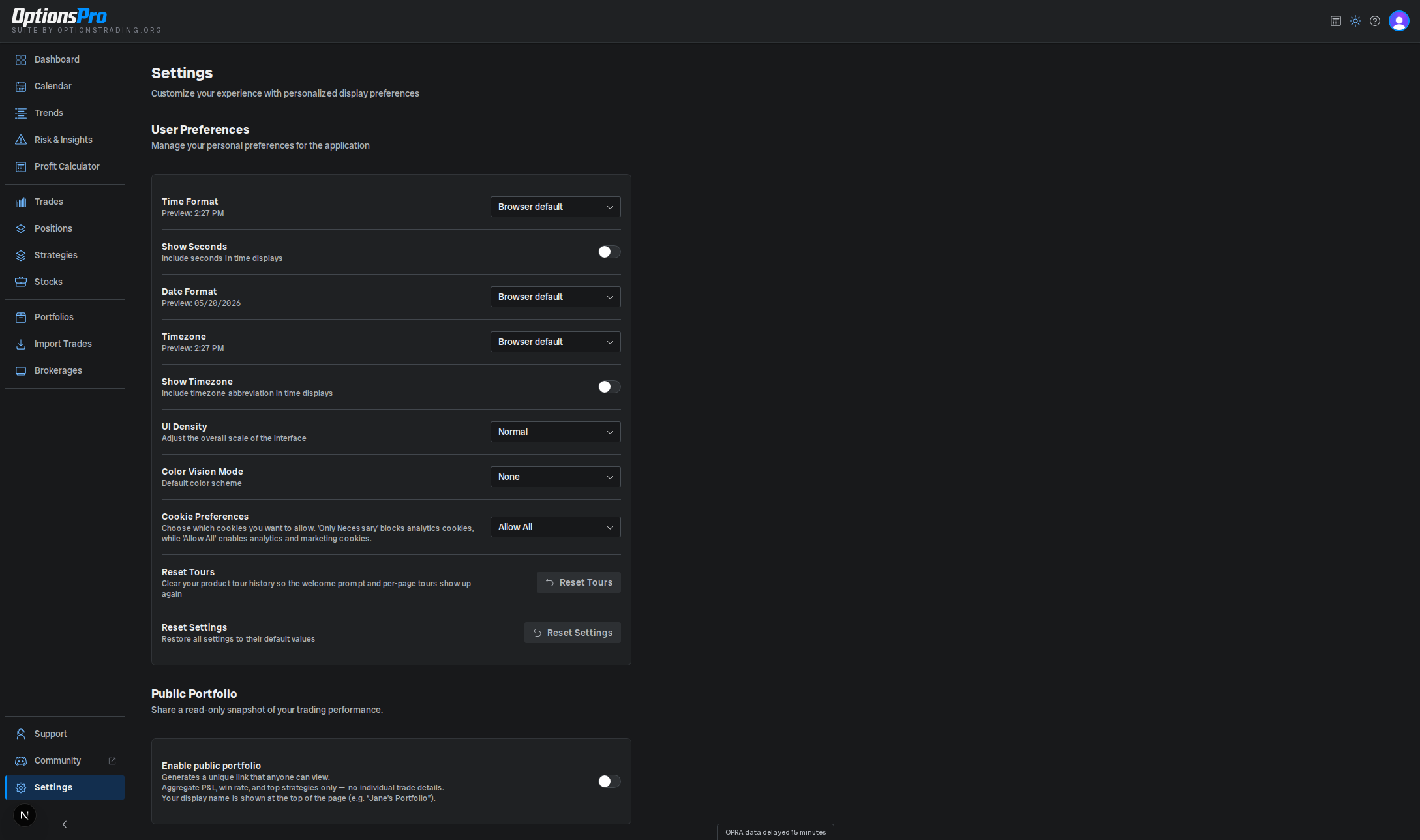
User Preferences
Personal display preferences. Changes save the moment you make them, and a toast confirms each save.
- Time Format - choose how times are displayed across the app. The label shows a live preview using the format you pick.
- Show Seconds - include seconds in time displays.
- Date Format - choose how dates render. The label shows a live preview.
- Timezone - the timezone used to display times across the app. Choose Browser default or UTC.
- Show Timezone - include the timezone abbreviation alongside times.
- UI Density - scale the interface in five steps from Most dense (90%) to Least dense (110%). Default is Normal (100%).
- Color Vision Mode - remap red/green semantic colors. Options: None, Deuteranomaly (Green-Weak), Protanomaly (Red-Weak), Deuteranopia (Green-Blind), and Protanopia (Red-Blind).
- Cookie Preferences - choose Only Necessary to block analytics cookies, or Allow All to enable analytics and marketing cookies. This option only appears in regions where cookie consent is required.
- Calendar Manage Marker (DTE) - set the days-before-expiration offset used to flag positions for management on the Calendar. Only appears when that feature is enabled for your account.
- Reset Tours - clear your product-tour history so onboarding tours reappear. Only appears when product tours are enabled for your account.
- Reset Settings - restore every preference above to its default value.
Public Portfolio
An opt-in sharing feature that generates a unique read-only link to your aggregate trading performance. When enabled, anyone with the link can view your headline stats - no individual trade details are exposed.
- Enable public portfolio - toggle the feature on or off. Enabling generates a unique link and automatically copies it to your clipboard. Disabling invalidates the link immediately.
- Share link - shown when the feature is enabled. Two buttons let you Copy the link to your clipboard or View it in a new tab to see exactly what visitors see.
- Rotate link - generates a new link and permanently invalidates the current one. Use this if a link was shared with someone you no longer want to have access.
The public page shows aggregate P&L, win rate, and top strategies for your account. Your display name appears at the top (e.g. "Jane's Portfolio").
Public Portfolio is only visible in Settings when the feature is enabled for your account.
Billing
Your subscription status and a link to manage it.
- Subscription Status - Active, Trial, Past Due, Set to Cancel, Canceled, or Not Subscribed. Pulled live from Stripe.
- Current Plan - price and interval (e.g.
$X/month) for active subscriptions. - Next Billing Date (or Access Until if cancellation is scheduled) - when the subscription will renew or end.
- Manage Billing - opens the Stripe customer portal to update payment, view invoices, or cancel. If your subscription is already set to cancel, this becomes Renew Subscription. If you're not subscribed, it becomes a Go Pro button that links to the upgrade page.
Data Sources
Attribution for the third-party data we use.
- FRED® API - risk-free rate data is supplied by the Federal Reserve Bank of St. Louis FRED® API. OptionsPro is not endorsed or certified by them.
- Options Market Data - quotes, Greeks, and implied volatility are provided by a third-party market data service (currently Optionomics or Massive, depending on server configuration).