Strategies
Automatic detection of multi-leg structures across your trades and positions.
OptionsPro groups individual legs into named strategies so your journal reads like your trading plan, not a list of executions. Detection runs on every sync and re-runs whenever a trade is added or closed.
Strategies is a Pro-tier feature. See Subscription.
What gets detected
The detector recognizes a wide library of structures, including:
- Single-leg - Long Call, Long Put, Short Call, Short Put.
- Verticals - Bull Call, Bear Call, Bull Put, Bear Put.
- Ratio spreads and backspreads - Bull/Bear Ratio Spreads, Short Bull/Bear Ratio Spreads, Call/Put Ratio Spreads, Call/Put Ratio Backspreads.
- Ladder spreads - Bull Call Ladder, Bear Put Ladder.
- Butterflies and condors - Butterfly, Bull/Bear Butterfly, Iron Butterfly, Reverse Iron Butterfly, Condor, Bull Condor, Iron Condor, Reverse Iron Condor, Short Butterfly, Short Condor.
- Albatrosses - Albatross, Iron Albatross, Reverse Iron Albatross, Short Albatross.
- Calendars - Calendar Call/Put Spreads, Short Calendar Call/Put Spreads, Calendar Straddle, Calendar Strangle.
- Volatility plays - Long/Short Straddle, Long/Short Strangle, Long/Short Gut, Strip Straddle, Strap Straddle, Strip Strangle, Strap Strangle.
- Stock-and-options combinations - Covered Call, Covered Put, Covered Call Collar, Collar, Protective Put (Married Put), Protective Call.
Anything that doesn't match a known structure - including diagonals (different strike and different expiration) - is recorded as a Custom Strategy so its legs still aggregate together.
You can also group legs yourself when the detector's answer isn't the one you traded - see Custom Strategy Grouping.
Strategies page
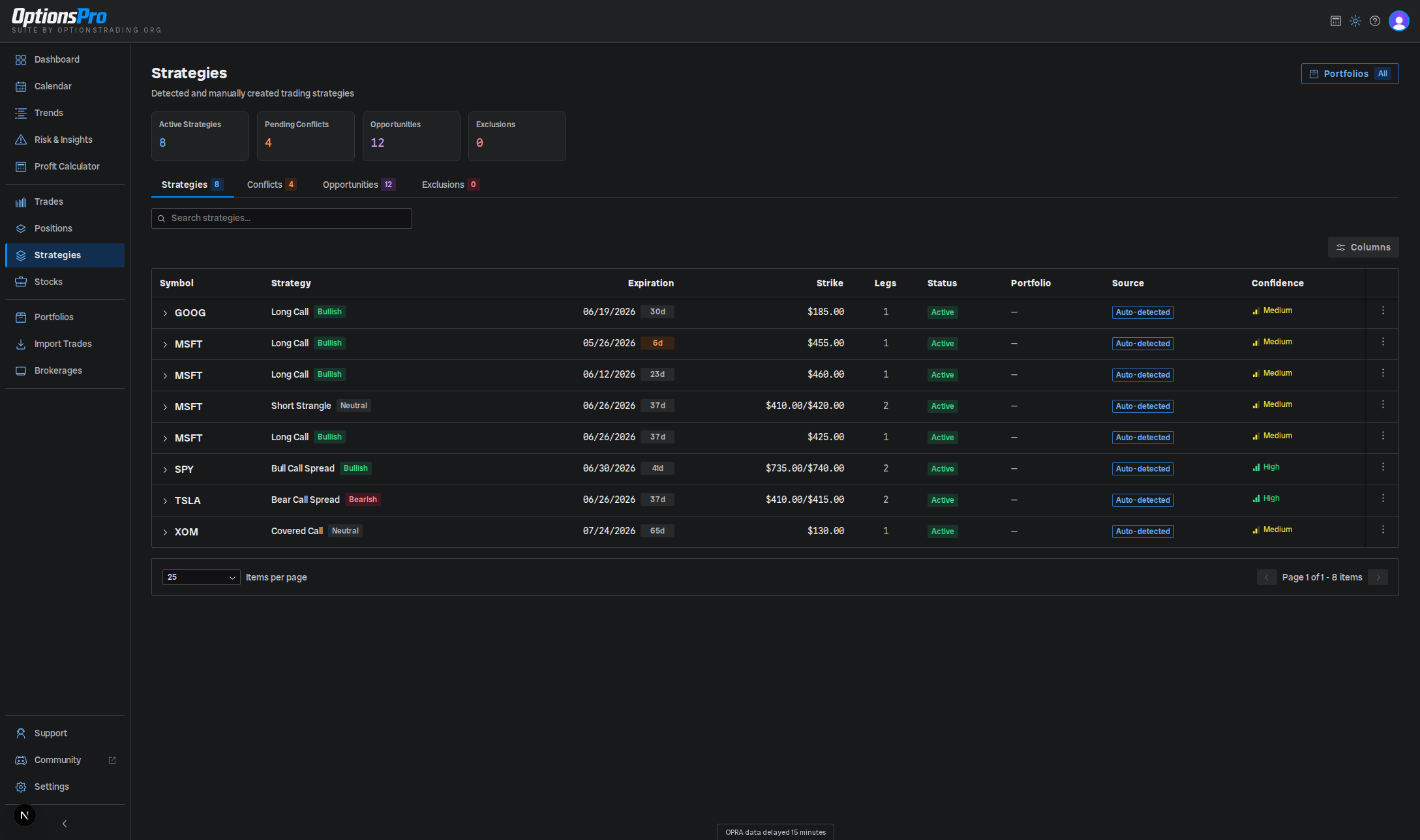
The page is split into four tabs: Strategies, Conflicts, Opportunities, and Exclusions. Summary cards above the tabs show counts for each.
The Strategies tab lists every detected strategy with these columns:
- Symbol - underlying ticker.
- Strategy - the detected structure with a market-outlook badge (bullish / bearish / neutral / volatile).
- Expiration - earliest expiration, or a range when the structure spans multiple expirations (e.g. calendars). A colored badge shows days remaining (orange within 7 days, red if expired).
- Strike - strike(s) involved, separated by
/when there is more than one. - Legs - count of contract legs.
- Status -
Active,Closed, orPartial. - Portfolio - portfolio assignment for the underlying positions, or a count badge when legs span multiple portfolios.
- Source -
Auto-detected,User-selected(you picked the structure when entering the trade), orManual(you grouped it yourself, from the Conflicts tab or the grouping modal). Manual groups can also carry Locked and Edited badges. - Confidence - Low / Medium / High indicator for how well the detected pattern matched, plus a suggested fills badge when new legs may belong to a group you customized.
Click a row to expand it and see each leg's direction, type, strike, expiration, quantity, average cost, cost basis, and realized P&L. The row's actions menu lets you Reject an auto-detected or user-selected strategy (which adds an entry to the Exclusions tab so it won't be detected again), Delete a manually resolved strategy, or Break up a group into simpler ones.
The page also has a search box; sort by clicking column headers. A Minimum Opening Legs filter controls how simple a structure has to be before it's listed - set it to 1 to include single-leg strategies, or raise it to hide them.
Selecting two or more rows from the same underlying reveals a Group into Strategy action above the table - see Custom Strategy Grouping.
Conflicts, Opportunities, and Exclusions
- Conflicts - positions that fit more than one valid structure. OptionsPro shows each candidate with a percent-match badge so you can pick the one you intended.
- Opportunities - partial matches: positions that would form a known structure if you added one or two more legs. Each card lists the missing legs.
- Exclusions - strategies you've rejected. They won't be detected again until you remove the exclusion from this tab.
Why a leg might not group
If a leg you expect to be part of a spread shows as standalone, the most common causes are:
- The positions match more than one structure and are sitting on the Conflicts tab waiting for you to choose.
- The structure is incomplete and is showing on the Opportunities tab instead.
- You (or someone in your org) previously rejected the structure - check the Exclusions tab.
- The leg is already part of a group you created or edited yourself. Those groups are locked, so auto-detection won't pull their legs into a different structure - see Custom Strategy Grouping.
- A portfolio filter is active and one of the legs is in a portfolio that's currently filtered out.
- The trade is still being enriched - the P&L refining indicator on the Trades page will be showing.
Detection re-runs automatically. If a structure doesn't appear after a minute, reach out to support.